Streaming Quality Explained: Resolution, Bitrate and Buffering
Streaming quality depends on three connected things: resolution, which is how many pixels make up the picture; bitrate, which is how much data is delivered each second; and buffering, which happens when your connection cannot keep up. A sharp, smooth picture needs all three to cooperate.
Resolution: The Size of the Canvas
Resolution describes the number of pixels in the image. More pixels allow finer detail, especially on larger screens or when you sit close. Common labels run from standard definition through high definition to ultra high definition, often called 4K.
Resolution is only the starting point. A bigger canvas does not help if the paint is thin. For a look at how pixel counts matter on real screens, see 4K vs 1080p for movies.
Bitrate: How Much Information Arrives
Bitrate is the amount of data used to describe each second of video. Higher bitrate generally means more detail is preserved, particularly in fast motion, dark scenes and fine textures like smoke or water.
Video is compressed to make streaming practical. When bitrate is low, compression becomes obvious: you may see blocky patches, smeared shadows, or banding in skies that should be smooth gradients. This is why two streams at the same resolution can look quite different.
Buffering: When the Flow Stops
Your device keeps a small reserve of upcoming video in memory. If data arrives slower than you watch, the reserve empties and playback pauses. That pause is buffering.
To reduce interruptions, players use adaptive streaming. They constantly test your connection and switch between quality levels. When speed drops, the picture softens briefly instead of freezing. This is normal, and it is why quality sometimes changes mid-show.
How the Three Fit Together
| Term | What it measures | Symptom when it is poor |
|---|---|---|
| Resolution | Pixel count of the image | Soft, lacking fine detail |
| Bitrate | Data per second of video | Blockiness, banding, muddy motion |
| Buffering | Whether playback keeps pace with downloads | Pauses, spinning wheel |
| Connection stability | Consistency of the network | Sudden drops in quality |
Troubleshooting Checklist
If your picture looks soft or keeps stalling, work through these steps in order:
- Restart the app and, if needed, the device.
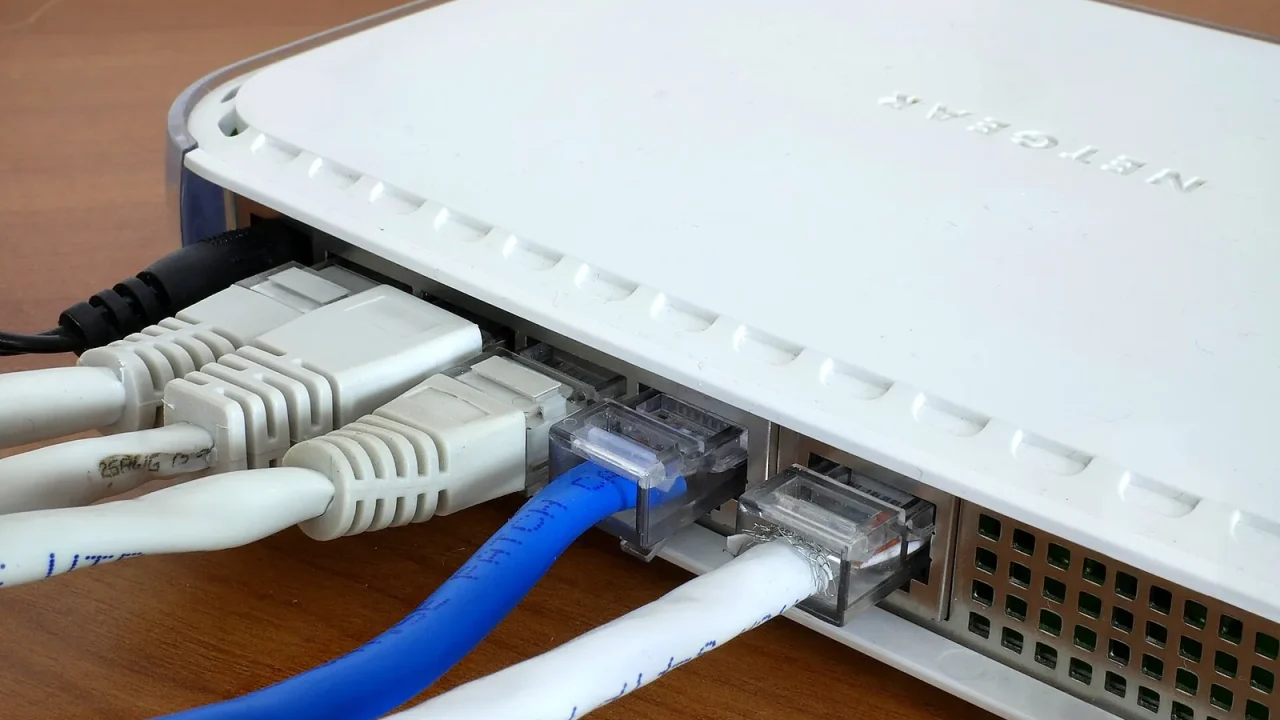
- Move closer to your router or connect with a network cable.
- Pause other heavy activity such as large downloads or other video streams.
- Check the quality setting inside the player and make sure it is not capped.
- Restart your router and wait for it to fully reconnect.
- Test at a different time of day to see whether congestion plays a role.
- If problems continue, contact your internet provider.
Common Myths
More speed is always the answer
Past a certain point, extra speed adds little. Stability matters more than headline numbers, since a fast but erratic connection can still cause stalls.
The TV is the only factor
Your display matters, but so do the player, the source and the network. Poor settings can also hurt a good screen; our guide to improving your TV picture without buying anything covers adjustments that cost nothing.
Wireless is always worse
Modern wireless can be excellent, but distance, thick walls and crowded airwaves make it less predictable. A cable remains the most dependable choice where practical.
Matching Quality to Your Situation
On a small screen or a phone, very high resolution is hard to notice, and a lower setting saves data. On a large television viewed from a normal distance, higher quality becomes more apparent. If your data allowance is limited, look for a setting that caps usage per hour; the details vary, so rely on your provider’s own information.
Room Factors That Affect What You See
Not every flaw comes from the stream. A bright window can wash out dark scenes, and a screen angled away from your seat can look dull. Before blaming your network, dim the lights and sit directly in front of the screen to compare.
Also look at your picture mode. Some presets exaggerate sharpness and can introduce artifacts that look like compression problems. Switching to a more natural preset often makes the same stream look cleaner and more filmlike.
In short, treat quality as a chain with several links. When something looks wrong, test one link at a time, starting with the simplest fixes. Methodical checking usually finds the culprit faster than changing everything at once.
It can also be worth running a quick test with a different show or app. If the problem appears everywhere, the cause is probably your network or display. If it appears in only one place, the source itself is more likely at fault.
This is general information only. For data allowances, speeds and costs, check with your internet provider and the official documentation for your devices.
Frequently Asked Questions
What is buffering?
Buffering is the pause that happens when your device cannot download video fast enough to keep playing smoothly, so it waits to load more data.
Is a higher resolution always better?
Not always. A high-resolution picture with low bitrate can look blocky or soft, so resolution and bitrate work best together.
Does a wired connection help?
Often yes. A cable is usually more stable than wireless, which can be affected by distance, walls and interference.
Why does quality change mid-show?
Players automatically raise or lower quality to match your current connection speed, which prevents constant stalling.